

Known Issues with Notes Plus v6.x
At the first time you launch app from iCloud syncing, it could take for a while if your app library has a lot of files/folders. You can do this to reduce downloading time if it’s stuck or taking forever:
At the first time you launch app from iCloud syncing, it could take for a while if your app library has a lot of files/folders. You can do this to reduce downloading time if it’s stuck or taking forever:
- Quit Notes Plus from background (swipe up at the bottom and swipe up on Notes Plus to quit it from multitasking completely)
- If you have a computer (either Windows/Mac), try to locate to iCloud Drive folder, find "NotesPlus Beta" folder, copy everything inside "Notebooks" folder and save it to safe place on your local disk. This would serve as your data backup later.
- Delete extra copies of your notebooks: first, please check if your notebook content displays properly by opening Notes Plus Library, open the notebook without the number appended on your notebook name. If it looks good, you can keep it and delete all the extra copies. If your extra copies are cached (it displays with tiny cloud icon), then you can go to Library > Auto Backup > enable "Automatic Download" and the app will attempt to download cached files from iCloud to your local storage. Then, you can delete the copies.
- An alternative method you can use to delete the extra copies of your data: go to iCloud Drive folder on your computer (Mac/Windows), delete the .npn files coming with a suffix containing the numbers. Wait for your file deletion syncs to iCloud fully. On your iPad, try to restart the device so it can "see" latest changes from iCloud server fully. Hopefully, this would help remove extra copies on your app library.
- Restart your iPad (just to make sure nothing is cached wrongly): long-press the Sleep button for a while, power it off, then turn it back on
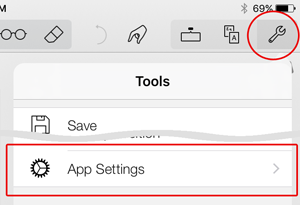
- Now, launch Notes Plus and the migration will run again (or you can go to Tools > App settings > tap “Migrate” button).
- Go to Library > Auto Backup > turn off iCloud Drive syncing and choose "Delete From This Device". Don't worry, your data copy is still remained on iCloud Drive server. This avoids data duplication later. Or if you decide to keep the data on your device, make sure to remove your notebooks on Library before turning on iCloud Drive syncing again later to avoid data duplication.
- Download "Notebooks" folder from iCloud Drive folder on Mac/Windows (read this support article https://support.apple.com/en-us/HT201391)
- Compress "Notebooks" folder (or just specific notebook folders you want to restore) as .zip file (in any name)
- Connect your iPad into computer via Lightning cable
- Locate to Notes Plus Documents in iTunes File Sharing (see https://support.apple.com/en-vn/HT201301)
- Drag the .zip file back into Notes Plus Documents
- Re-launch Notes Plus app, wait for a moment and your notebooks will appear.
Troubleshooting
- Exit the app from the background: from the Home screen, double-press the Home button to reveal the background screen, then swipe up on the Notes Plus screenshot.
- Reset to default settings: go to Tools > App Settings, and tap the button next to “Reset to default settings”.
- Restart your iPad: long-press the Sleep button for a while, power it off, then turn it back on.
- Use continuous scrolling mode
- Save automatically
- Go to iPad Settings > Privacy > Microphone, and make sure “Notes Plus” is turned ON.
- No other apps are using the Microphone. To be sure, from the Home screen, double-press the Home button to reveal the background screen, then swipe up on the screenshot of every app except Notes Plus. You might want to also exit Notes Plus this way and relaunch it. This usually fixes weird issues.
- Don’t draw too slowly;
- For polygons, try to draw sharp corners;
- For ellipses, avoid drawing sharp corners;
- Set a lower shape detection threshold in App Settings to increase the sensivitity.
- Connect your iPad to your computer.
- Launch iTools (a very fast iOS file manager for Windows; Mac version).
- Click Advanced > Crash log.
- Select the file(s) beginning with “NotesPlus” followed by the crash time. (Hold Ctrl while clicking to select multiple files.)
- Click Export and choose a folder to save the file(s) in.
- Email the file(s) to support@notesplusapp.com.

Alternatively, you can retrieve crash logs via iTunes, especially when you’re not on a Windows machine.
Thank you so much for your help!
General
Taking Notes
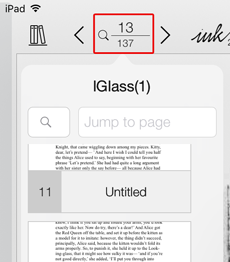
- Tap the page number button, then tap a thumbnail, or enter a page number to jump to.
- Long-press the right edge of the page (or the left if you’re in left-handed mode), scroll to find the right page thumbnail and tap it.
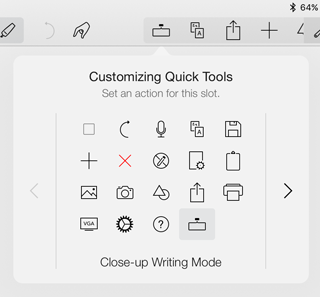
- Import your PDF paper template as a one-page notebook;
- Make as many copies of the page as needed for your notebook;
- Annotate on these pages.You can also find more PDF templates from the Internet, like this site.
Recording

- Export them to iTunes.
- Hook your iPad to your computer and launch iTunes.
- Open “Notes Plus Documents” (http://support.apple.com/kb/
HT4094). - Save the .caf files from “Notes Plus Documents” to your computer.
Handwriting Recognition
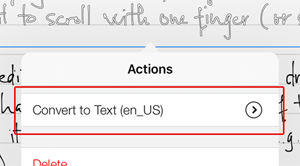
- Write in straight lines, leaving ample space between each line.
- Avoid complicated layouts, multiple columns etc. Write in clear horizontal blocks of text.
Organization
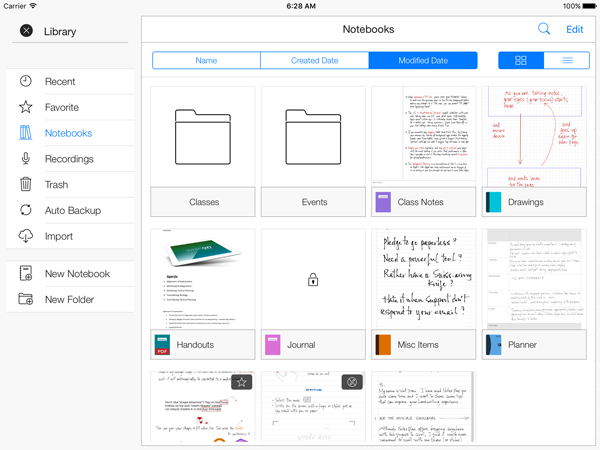
Tip: while taking notes, you can quickly create a new notebook by tapping the “plus” icon in the scrollable Quick Tools area near the top-right corner, then tap Create New Notebook.
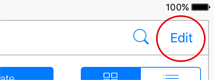
- You can swipe across a notebook, tap the first icon and rename it.
- While taking notes, tapping the notebook name near the top-left corner will allow renaming it.
- While taking notes, tap the page header in the top-right corner of the page to rename the current page.
Importing & Exporting
- Use File Sharing and add it to “Notes Plus Documents”. Close and re-open Notes Plus and it will appear in the library. Tap on it to get it ready for annotations. This is the most reliable method.
- Long-press an attachment in an email message and choose “Open In Notes Plus”. If the attachment is large, you’ll need to tap it first to download it, after which you can long-press it and reveal the “Open In Notes Plus” option.
- Load it in another app (Safari / Dropbox / etc.), then tap the Actions button and choose “Open In Notes Plus”
- Load it in Notes Plus browser (swipe right at the left edge to reveal this panel), then tap Import.
- (If it’s in a cloud account) Open the library and go to the Import section. Add a remote account if necessary. Tap to open the account and browse to the file and tap it.
- Destination: Mail
- File type: WebArchive
Backing up Data
- Each time you insert or edit a notes, your changes are updated on iCloud automatically.
- When you get a new device and want to restore your notes, install Notes Plus app and it will restore your notes from iCloud automatically.
- If you use multiple devices to take notes, Notes Plus syncs your iCloud data across multiple devices automatically.
To use iCloud auto-backup, while in Library, tap on Auto Backup button on the left panel.
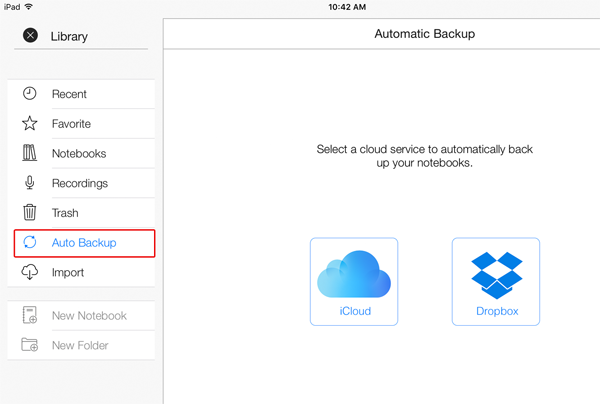
Tap on iCloud icon in the right panel then tap on "Start Using iCloud". First time iCloud initiation takes a few minutes, please keep the app open until iCloud initiation finishes.
- If you add an item (i.e. a notebook / folder) in Notes Plus, it will be uploaded to the backup folder in Dropbox.
- If you delete an item in Notes Plus, the remote version in Dropbox will be deleted.
- If you add a supported file under the backup folder, it will be downloaded to Notes Plus library.
- If you delete an item under the backup folder, the local version will NOT be deleted from Notes Plus. Instead, Notes Plus will re-upload the newly deleted item to Dropbox.
To start using this feature, while in Library, go to the Auto Backup section and tap Dropbox icon.
- Hook your iPad to your computer and launch iTunes
- Locate “Notes Plus Documents”. Read about File Sharing (see http://support.apple.com/kb/
HT4094 ) and you will know where that is. - Save the Notebooks and Recordings folders from “Notes Plus Documents” to your computer
- Compress its contents in a .zip file (any name)
- Add the file to “Notes Plus Documents”
- Exit the app from the background and relaunch it
- Wait while the app unzips the backup and loads it before you can see your old notes. The .zip file will be deleted from Notes Plus Documents when this process is done.
- Install Notes Plus on the new iPad.
- Go to Library and turn on Use iCloud Auto-backup (see question above). Notes Plus will pull your notes from iCloud to your iPad automatically.
- Use Dropbox auto-backup on the old iPad. Wait a while for the notes in Notes Plus to be uploaded to your Dropbox account.
- Use Dropbox auto-backup on the new iPad. Wait a while for the notes in Dropbox to be downloaded to your Notes Plus library.
- Connect your old iPad to iTunes. Via File Sharing, save the Notebooks and Recordings folders from Notes Plus Documents to your computer.
- Compress the contents of Notebooks (or just certain notebooks you want in it) in a .zip file (any name)
- Connect your new iPad to iTunes. Add the zip file (in step 2) to Notes Plus Documents (refer to the File Sharing link above).
- Launch Notes Plus in the new iPad. Wait while the app unzips the backup and loads it before you can see your old notes. The .zip file will be deleted from Notes Plus Documents when this process is done.
If you’re migrating recordings, please also do:
- Download and launch iTools.
- Click Applications > ShareDocs > Notes Plus.
- Click Import > Folder and select the Recordings folder that you backed up.

- Notes Plus needs to create a folder within Dropbox named NotesPlus that stores all your backup files.
- For flexibility, we allow users to change this default folder to a different one. Other apps with auto backup to Dropbox (i.e GoodNotes/Notability/
GoodReader, etc…) are doing the same thing, requesting full access to all files and folders.
You can always monitor the sync log on Dropbox’s website via https://www.dropbox.com/events.
In-app Browser
- Open a notebook for viewing while taking notes in the paper panel. See the next question.
- Use an online calculator, like http://instacalc.com.
- Open a clip art site and use an image there in your notes. Check out this great site for royalty-free images: http://openclipart.org.
- Check email, Google Calendar, etc.
- Handwrite your search queries in Google!
- Create images of equations and send them to the other panel into your notes. Open this site. http://webdemo.myscript.com, and tap Math.
Others
- Steps to reproduce the bug
- Screenshots if they help explain it.