
GENERAL

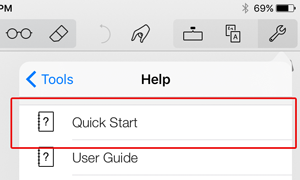
Do you have a Quick Start guide to all the features?
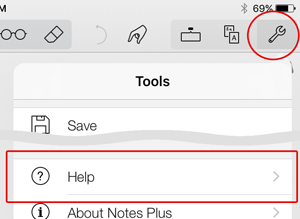
Turn your iPad to landscape, then tap the question mark ( ? ) button near the bottom-left corner of the screen. Here’s the printable Quick Start, courtesy of Laure, one of our beta testers.
How do I enter closeup mode?
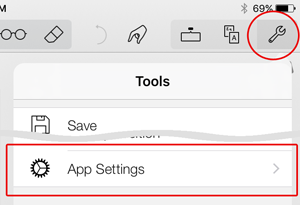
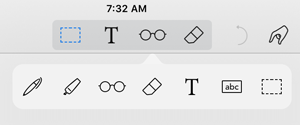
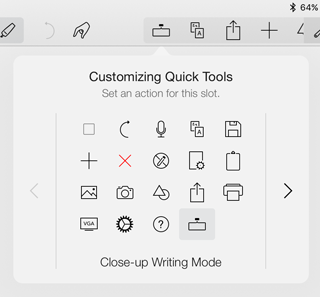
Just switch to the Pen tool on the toolbar and long-press anywhere on the page. Or you can enable “Show closeup button on header” in App Settings (accessed via the gear icon in the bottom left corner in landscape mode) and tap this new button on the toolbar.
What styli are recommended for use with Notes Plus?
Please look here for an answer.
How about these styli: Adonit Jot Pro, ByZero Studio One Pen, iPen? Does Notes Plus support them?
You can already use the Adonit Jot Pro with Notes Plus to some extent. Our integration with the pen in the future will only make it more precise. As for the other two, we already support them.
Can I try out the handwriting recognition feature before buying it?
While you can’t do so directly in Notes Plus, handwriting recognition is brought to you by Vision Objects – the maker of the free MyScript Memo app – so you can install the app for FREE to try out the accuracy of the engine. We think it’s pretty amazing!
Note: Even if you own a full version of MyScript Memo, you’ll still need to purchase this HWR feature in Notes Plus – because these are two separate apps.
Tried it and love it! How do I purchase it, then?
1) Log out of your Apple account: go to iPad Settings > Store, tap on the Apple ID button and “Sign Out”. If you’ve been using only one Apple ID all along, you can skip this step.
2) Connect your iPad to Wi-Fi or 3G
3) Tap Tools (top-left wrench icon) > Purchase handwriting recognition. Tap on “Purchase” to confirm your purchase and follow the process. Make sure to enter your username/password that you used to purchase Notes Plus originally. Wait a while for the transaction to complete.
How do I use handwriting recognition?
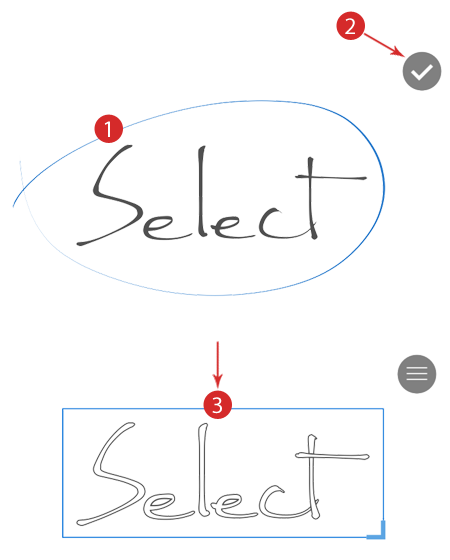
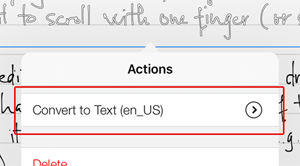
In Pen mode, just circle some text to select it, then tap “>”, “Convert to Text”. Tap “EN” next to “Convert to Text” to choose the recognition language or tap “More” and download more languages.
What HWR languages does Notes Plus support?
We support the same set of languages that MyScript Memo supports, namely, Arabic, Catalan, Chinese (Simp. & Trad.), Czech, Danish, Dutch, English (Can/ UK/ US), Finnish, French (Ca/ Fr), German, Greek, Hebrew, Hungarian, Italian, Japanese, Kazakh, Korean, Norwegian, Polish , Portuguese (Br/ Port), Romanian, Russian, Spanish (Mex/ Esp), Swedish, Turkish, Vietnamese.
How do I edit text converted from my handwriting?
Two-finger-tap on the textbox or switch to ABC mode on the toolbar and tap the textbox. You can also tap the Palette and change the current font settings of the textbox.
Is it possible to convert handwriting to text as I write?
Unfortunately no. We think on-the-fly conversion is not really efficient in terms of performance and convenience, since users would have to repeatedly go back to the time-consuming process of editing wrongly converted text. After-the-fact conversion allows time for them to correct their handwriting first. We’ll have “Convert Page to Text” in the future to make it even easier.
How do I redo an action?
Long-press on “Undo” on the toolbar to reveal the Redo button.
But Undo doesn’t seem to work with typed text. What’s wrong?
Undoing and redoing typed text is built into iOS. Tap the .?123 key on your keyboard to see the Undo key. Go on and tap on the #+= key to see the Redo key. Note that you can only undo the most recent change this way, for example, pasting text and undoing the pasting. A better way is to shake your iPad and tap “Undo Typing”.
An even better solution is to use Notes Plus extended keyboard, which includes Undo/Redo buttons for text. Just enable this functionality in App Settings and you’re good to go.
How do I search my notes?
You can search for notebook/folder names, page titles and typed text (including converted text, even if it’s not visible). To do so, tap Tools (top left on the toolbar) > Browse Library and swipe all the way down the list to reveal the Search box. To search within a specific folder/notebook, open it first, the proceed as above.
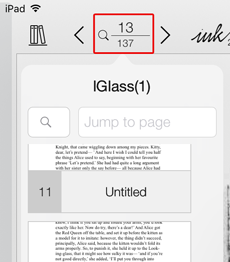
How do I jump to a notebook page?
Tap the page navigation field, which looks like “<  (1/2) >” (meaning you’re editing page 1 of 2 pages), then enter a page number to jump to.
How do I rotate an object?
To rotate a shape, textbox, or image, select it and do a two-finger rotation gesture on it. To rotate handwritten text, first turn it into a manipulable object by circling it, then tap “>”, then “Group”. Finally you can rotate it with a rotation gesture.
How do I import a PDF?
There are three ways:

1. Use File Sharing and add it to Notes Plus Documents. Close and re-open Notes Plus and it will appear in the root folder. Tap on it to get it ready for annotations. This is the most reliable method.
2. Long-press a PDF attachment in an email message and choose “Open In Notes Plus”. If the attachment is large, you’ll need to tap it first to download it, after which you can long-press it and reveal the “Open In Notes Plus” option.
3. Load a PDF in another app (Safari / Dropbox / etc.), then “Open In Notes Plus”

Can I apply various styles to various words in a textbox?
Unfortunately, Notes Plus doesn’t support inline formatting until a future update so you’ll need to use several textboxes and give each of them different formatting.
I only type my notes. Is there a way to export them as text in the body of an email instead of a PDF/image?
Currently no. There will be an “Export as Text” option. Meanwhile, you can use iOS standard copy/paste command as follows: use the ABC tool and tap on the text (or use the T tool if you typed full page), tap again > Select All > Copy. Then go to another text field (e.g. your email), tap there and then Paste.
Can I use custom paper backgrounds? If so, where can I get some?
Currently custom backgrounds are not supported until a future update. That said, there’s a workaround: (1) Import your PDF paper template as a one-page notebook; (2) Make as many copies of the page as needed for your notebook; (3) Annotate on these pages.

You can also find more PDF templates from the Internet, like this site.

How does Dropbox autobackup work in version 3?
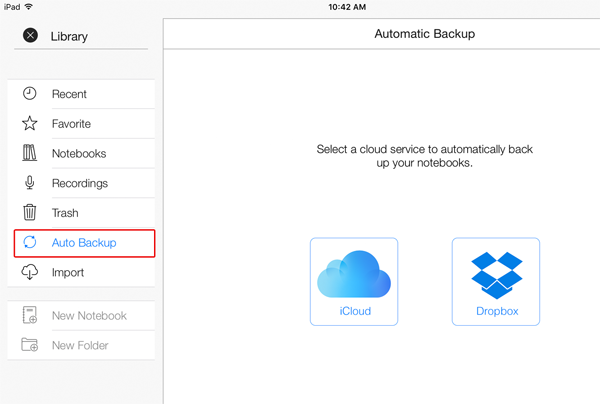
- If you add an item (i.e. a notebook / folder / PDF) in Notes Plus, the same item will be added to the NotesPlus/AutoBackup folder on Dropbox.
- If you delete an item in Notes Plus and if there exists the same item under NotesPlus/AutoBackup on Dropbox, it will be deleted.
- If you add a PDF under NotesPlus/AutoBackup, the file will be downloaded to Notes Plus library.
- If you delete an item under NotesPlus/AutoBackup, the same item will NOT be deleted from Notes Plus. Instead, Notes Plus will reupload the newly deleted item to Dropbox. If you delete and reinstall Notes Plus, you can have old data from Dropbox automatically downloaded to Notes Plus.

To start using it, turn on “Link to Dropbox”, tap Allow, and then turn on “Automatic Backup and Restore” in App Settings.

What if I just want to upload my notebook as a readable PDF onto Dropbox?
Just tap Tools (top-left wrench icon) > Export > To Dropbox > [choose a PDF option].
How do I back up and restore data without using Dropbox?
Save the Notebooks and Recordings folders from Notes Plus Documents to your computer via File Sharing.

To restore data from the Notebooks folder: (1) Compress its contents in a .zip file (any name); (2) Add the file to Notes Plus Documents; (3) Exit the app from the background and relaunch it; (4) Wait while the app unzips the backup and loads it before you can see your old notes. The .zip file will be deleted from Notes Plus Documents when this process is done.

Notes Plus says it has exported my recordings/notebook to iTunes. Where are they, precisely?
Please save them from Notes Plus Documents to your computer via File Sharing. For recordings, look for files with the .caf extension. For your notebook, look for a PDF with the prefix “Exported – “.

Tip: you might want to rename them in Notes Plus so they are recognizable in the File Sharing section.

Cool! But how do I play these .caf files on my computer?
Please use QuickTime. We’ll consider using another format (like mp3) for easier playback in the future.
Is it possible to view a PDF/notebook in the browser panel and take notes in the other?
Absolutely! Just go to the browser panel, tap the Shelf icon in the top-right corner and tap a PDF/notebook. Then go to the note-taking panel and open a notebook you want to take notes in. Note that the browser panel is for viewing only.
How do I best use the browser panel besides browsing the web?
Some ideas:

1. Open a notebook/PDF for viewing while taking notes in the note-taking panel. See an entry above.
2. Use an online calculator, like http://instacalc.com.
3.  Open a clipart site and use an image there in your notes. Check out this great site for royalty-free images: http://openclipart.org.
4. Check email, Google Calendar, etc.
5. Handwrite your search queries in Google! Learn more.
6. Create images of equations and send them to the other panel into your notes. Watch http://youtu.be/hAoszsS56tY, courtesy of one of our valued users.

If you discover any other good uses, please let us know. Thanks in advance.

How do I share a notebook with other Notes Plus users?
Tap Tools > Export > Email > WebArchive – Entire notebook, then enter their email addresses. They will then long-press on the .webarchive attachment in the received email and choose “Open In Notes Plus” and then tap “Import” in the browser panel (the blue arrow) to import it into their library as a regular notebook.

Tip: sometimes, you might want to share your notebook with the support team along with your issues for quicker support.

Note: there’s a bug in v3.0.8 where you can’t properly export PDF notebooks as WebArchives – the original PDF pages won’t be included.

How do I migrate all my notes from an old iPad to a new one?
Method 1 (via iCloud, for a brand new or restored iPad):

1. On your old iPad, go to iPad Settings > iCloud > Storage & Backup. Make sure “iCloud Backup” is on, and tap “Back Up Now”. You might also want to tap Manage Storage and choose what data to back up.
2. While setting up your new iPad, you’ll be asked if you want to use the most recent iCloud Backup. Just go ahead and do so.

Method 2 (via Dropbox):

1.  Turn on “Link to Dropbox” and “Automatic Backup and Restore” in Notes Plus Settings on the old iPad. Wait a while for the notes to be uploaded to Dropbox. If you’ve been backing up to Dropbox like this, skip this step.
2. Turn on these 2 options in Notes Plus Settings on the new iPad. Wait a while for the notes on Dropbox to be downloaded to your Notes Plus library.

Method 3 (via iTunes):

1. Connect your old iPad to iTunes. Via File Sharing, save the Notebooks and Recordings folder from Notes Plus Documents to your computer.
2. Compress the contents of Notebooks (saved above) in a .zip file (any name)
3. Connect your new iPad to iTunes. Add the zip file (in step 2) into Notes Plus Documents.
4. Launch Notes Plus in the new iPad. Wait while the app unzips the backup and loads it before you can see your old notes. The .zip file will be deleted from Notes Plus Documents when this process is done.

Apple doesn’t allowing adding folders to Notes Plus Documents so you’ll need another application called i-funbox (http://i-funbox.com) to migrate recordings. Download and launch the application, navigate to User Applications/Notes Plus/Documents, click “New Folder” and create a new folder named “Recordings”. Go into this folder and “Copy from PC” all the files from the Recordings folder that you saved in step 1.

Do you have plans to port the app to another OS like Android?
We do, but not in the near future, as we’re focusing on bug fixes and usability improvements on this iOS version. It’s never a good idea to migrate the same bugs and weaknesses to another platform, so we believe Android users will benefit a lot from this wait.
Do you have plans to support Evernote?
Yes we do, but it’s going to take a while. The reason is the same as above. For now, please email your notes to your Evernote account address.
Do you support TextExpander?
While we don’t have plans for TextExpander in the near future, you can take advantage of a similar built-in feature of iOS 5 – “shortcuts”. Just tap iPad Settings > General > Keyboard > Add Shortcut…
How about bulletting?
We’ll implement it in the future. Meanwhile, you can long-press on “-” on the keyboard and get a bullet. Better yet, create a shortcut for it with iOS 5 Shortcuts (see the previous question).

TROUBLESHOOTING

The app is acting weird. What should I try first to make it go back to normal?
Try exiting it from the background: from the Home screen, double-press the Home button to reveal the background dock, long-press an icon there until it wiggles, then tap the red minus on Notes Plus.

Also try restarting your iPad: long-press the Sleep button for a while, power it off, then turn it back on.

Tip: you can try exiting all other unused apps from the background this way to see if Notes Plus performs better.

The app crashes frequently. What should I do?
Our Dropbox auto-backup might be the cause. If you’re using it, unlink from it in App Settings (tap the gear icon on the bottom left-hand corner, then turn off “Link to Dropbox”).
How come I can’t even launch the app? It flashes for a few seconds and then quits.
Please reset the app to its manufacturer settings by deleting the NAppProperties.plist file from Notes Plus Documents via File Sharing, then exit the app from the background and relaunch it. You won’t lose your notes by doing this.
I can’t back up the Notebooks folder via File Sharing per the instructions. The error message was, “Notebooks” could not be copied because an error occurred. The required folder could not be found. What do I do?
Try using i-funbox to save “Notebooks”. Download and launch the application, click the “Managing App Data” app, then Notes Plus, select “Notebooks” and click “Copy to PC”.
Why does the screen jiggle when I’m trying to write with my stylus?
Your palm is probably being misunderstood as a four-finger swipe, thus activating iOS Multitasking Gestures. Apple doesn’t allow changing this setting by code, so you’ll need to turn it off in iPad Settings > General > Multitasking Gestures when using Notes Plus.
Why can’t I see the “Open In Notes Plus” option for a PDF although I’ve tried scrolling the list?
It is an iOS limitation. If other apps already registered “Open In” with iOS before Notes Plus then there might be no more room for Notes Plus (and that’s usually the case, considering the popular PDF format). See if this article helps.

Note: iOS 6 or above will display the full list of apps in the Open In list. If you don’t see “Notes Plus”, try swiping the list to see if it’s hidden somewhere.

Why can’t I erase the handwriting after choosing “Show handwriting”?
It’s a bug. Sorry about this.
The “Ink Effect” option is grayed out in Pen Settings from the Palette. Is this normal?
We disabled this option on iPad 1 as this feature consumes memory. We hope to bring it back soon in a future update.
I’m left-handed but I don’t use the Palm Pad from the top. What do I do?
This version supports the left-handed “hooked” style only. We’ll support other styles soon. Sorry about the inconvenience.
I selected my handwriting and tapped “Convert to Text” but I got an empty textbox. Why?
First, check that you’re using the correct recognition language for your text. For example, the HWR engine can’t recognize French text if its current recognition language is English. Second, try resizing the textbox to make it bigger (drag on the corner handle). Also (while the textbox is selected), try tapping the Palette icon on the textbox and setting a smaller font size.
I imported a PDF into Notes Plus, now I see several blank pages in the PDF notebook, not to mention garbled text on some pages and pages with page number 0.
This might happen when you navigate through the PDF pages that haven’t been fully loaded yet. After importing a PDF, you’ll see a spinning-wheel icon on the new PDF notebook in the library. It indicates the PDF is being imported. Please wait until this icon disappears before viewing the PDF notebook and you shouldn’t have blank pages or other weird things.

If all else fails, try importing a PDF via File Sharing by adding it to Notes Plus Documents.

OTHER

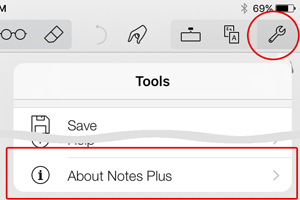
How do I know what Notes Plus version I’m using?
Look in the About tab in App Settings (accessed via the gear button on the bottom left-hand corner).
How do I take a screenshot of my iPad screen and send it to Support?
Press the Lock and Home buttons on your iPad simultaneously, then check in the Photos app and email it to us along with your question. Alternatively, you can upload it to a free image hosting service like PostImage.org and include the image link in your comment.
How do I report a bug?
You might want to look at the bug list first to see if it’s already known. If not, email support AT notesplusapp DOT com, or comment on this site where comments are allowed. Please let us know the following information:

1. Your iPad generation
2. iOS version: look in iPad Settings > General > About
3. Notes Plus version
4. Steps to reproduce the bug
5. Screenshots if they help explain the bug

Feel free to give us suggestions to make the app better too.


Leave a Comment

1870 Comments (+add yours?)
  1. Beth Vleaminck
    Apr 03, 2012 @ 12:57:20

    Hi,
    For Dropbox sync, is it possible to view one of your notebooks on a non ipad device using this feature? Also, I have looked for the export to dropbox feature a few times and can’t find it(only looked under the export menu). Am I looking in the right place?

    Thanks,

    Beth

    • Toan Nguyen
      Apr 03, 2012 @ 14:00:23

      Hi Beth,

      The index.html files in the subfolders under Dropbox/NotesPlus/AutoBackup/Notebooks display the contents of your notebooks. You can view them in a web browser. For the “Export to Dropbox” feature, tap Tools (top-left wrench icon) > Export > To Dropbox, then choose a PDF option. If you still don’t see this feature, chances are you’re not using v3.0.3. Please get it from the App Store.

  2. Przemo
    Apr 02, 2012 @ 14:40:06

    Simple Question,
    How can I delete the exported audio (.caf) files from iPad? iTunes does not allow for that… Thank YOU!

    • Toan Nguyen
      Apr 02, 2012 @ 17:03:44

      Hi Przemo,

      Do you see those .caf files in Notes Plus Documents in the File Sharing section? If so, just select them and press Delete on your keyboard.

      • Gerry
        Apr 07, 2012 @ 13:27:54

        Hi

        I don’know about Prezmo, but that Doesn’t work for me.

        • Duy Nguyen
          Apr 08, 2012 @ 04:41:00

          Hi Gerry,

          If you want to delete a recording on your iPad, please just go to Recordings section, tap Edit at the bottom, select recordings and tap “Delete” at the bottom. If you’re on iTunes File Sharing, it should allow you to hit Delete button on keyboard to delete a selected item (folder). Make sure you create a backup before doing so to avoid deleting the wrong items.

          Thanks,
          -Duy

  3. Ruth M
    Apr 01, 2012 @ 20:02:34

    Hi
    I simply love notesplus, it’s changed the way I work.
    I’ve got an iPad2 and am trying to download the handwriting recognition package. I’ve followed the instructions on frequently asked questions however the “convert to text” option doesn’t come up when I circle the handwritten text.
    Any ideas where I might be going wrong?
    Many thanks
    R

    • Toan Nguyen
      Apr 02, 2012 @ 05:20:05

      Hi Ruth,

      Thanks for loving Notes Plus. Are you using v3.0.3? Please check the current version under the About tab in App Settings (accessed via the gear icon on the bottom left corner). If it’s v3.0.3, please try exiting the app from the background: from the Home screen, double-press the Home button to reveal the background dock, long-press Notes Plus icon until it wiggles, then tap the red minus (-). Then, write some text, circle it and tap “>”. Do you see “Convert to Text” in the menu?

  4. Nick
    Apr 01, 2012 @ 05:31:00

    The app is great and the HWR realign superb even with my scrawl. Something I have tried to o without succes is the following, maybe some advice?

    I want to review my notes, HWR on actions and then copy them into “reminders” app. I can do all of he above except the final step. The data on he clipboard does not seem available outside of “notes plus”. Any thoughts?

    Nick

    • Toan Nguyen
      Apr 01, 2012 @ 07:02:38

      Hi Nick,

      You can use iOS standard copy/paste command as follows: use the ABC tool and tap on the converted text, tap again > Select All > Copy. Then go to another text field (e.g. the Reminders app), tap there and then Paste.

      • Nick
        Apr 01, 2012 @ 11:49:02

        Perfect, hanks

  5. Louise
    Mar 31, 2012 @ 23:22:26

    Can you create a hyperlink in Notes Plus? Right now it seems that you just copy and paste a link into the browser. It would be nice if you could just touch the link and go directly from Notes Plus to the website.

    Otherwise, I really do like this app. I just purchased it today.

    • Toan Nguyen
      Apr 01, 2012 @ 06:46:56

      Hi Louise,

      Sorry you can’t create hyperlinks right now. We’ll consider this feature when implementing rich text in the future. Stay tuned!

1 48 49 50 51 52 163